TL;DR
- AI-generated slides always need a human edit pass. A deck that looks finished is not the same as an accurate deck.
- Text overload is the most visible sign of an unedited AI presentation. One clear idea per slide is the rule.
- If your slides look like a template someone borrowed, design consistency is the problem.
- AI can hallucinate statistics and make confident claims that do not hold up. Verify every data point before you present it.
- Tools like Presentations.ai reduce most of these problems by default through smart layouts, Brand Sync, and conversational editing.
Why AI Presentation Tools Produce Predictable Mistakes
AI presentation tools have changed how fast you can go from a blank page to a finished-looking deck. But speed also hides a problem. Because AI-generated slides look polished right out of the box, you might be tempted to skip the editing step.
The deck has structure, visuals, and a logical flow, so it feels done. Then they present it, and somewhere in the middle of the room, as they go quiet, they realize it was not quite done after all.
The mistakes people make with AI presentations are predictable. They are not random, and they are not your fault. They are the natural result of how these tools work and what they were built to optimize for. Once you know what to look for, the fixes are quick. This post walks through the seven most common ones and shows you how to correct each one before your next presentation. If you want to see what good AI-assisted slide creation looks like from the start, Presentations.ai is worth a look.
Every AI presentation tool works roughly the same way under the hood. You give it a prompt; it generates slide content based on patterns it has learned from a large dataset, then applies a visual layout to that content.
What it cannot do is understand your audience, verify its own claims, decide what matters most in your specific context, or make judgment calls about emphasis and tone.
So you’ll need to take a short editing pass before you share the deck.If you're looking for a tool designed to minimize these patterns from the start, our AI Presentation Maker builds in smart defaults that reduce the most common problems before you even start editing.
7 Common Mistakes While Writing Prompts for AI Presentation Tools
The common thread while writing prompts is to be as specific as possible, thereby minimizing room for errors or misinterpretations.
Mistake 1: Giving the AI a Vague Prompt
This is where most bad AI presentations start. Someone types "Make a presentation about our product" or "create a deck on Q3 results" and hits generate. The tool does its best, but it has almost no real context to work with. The output ends up generic because the input was generic.
AI tools are not mind readers. They produce better output when you give them better raw material. The difference between a vague prompt and a specific one is not a matter of length. It is a matter of detail.

Presentations.ai’s Clip-E asks for more context before generating a presentation
The fix
Before you type your prompt, answer three questions:
- Who will be seeing this presentation?
- What do they already know, and what do they need to decide?
- What should they do after the last slide?
Feed these answers into your prompt. A prompt like "Create a 10-slide deck for a VP of Sales evaluating two vendor options. The audience knows our industry but not our product. The goal is to get a demo scheduled by the end of the week" will produce better results than a one-liner.
Mistake 2: Not Editing the Output
This is the most common mistake, and it compounds every other one on this list. AI-generated slides look polished. They have clean layouts, reasonable structure, and visuals that seem to fit. So people assume the work is done and share the deck without touching it.
A deck can have professional visual design while still containing hollow phrasing, wrong assumptions about your audience, a weak opening, and a closing slide that says nothing useful. None of that shows up at a glance.
The fix
Build a short editing pass into your process after every AI generation. It does not need to be long. Ten minutes is enough for a standard deck if you know what to look for. Read the opening slide and ask whether it would make sense to someone who knows nothing about your company.
Read the closing slide and check whether it contains a specific action. Scan every bullet point and remove the ones that do not add anything your audience could not have guessed on their own. Those three checks alone will significantly improve most AI-generated decks.
Mistake 3: Overloading Slides with Text
AI tools default to thoroughness. When you give them a complex topic, they try to cover it completely, which means they pack slides with bullet points. The result is a deck where every slide looks like a written report someone accidentally turned into a presentation.
Slides full of text do not communicate more effectively than slides with less text. They communicate less effectively because your audience is reading rather than listening, and they either fall behind or tune out. A presentation is not a document. The two formats serve different purposes.
The fix
Apply a one-idea-per-slide rule. Every slide should carry one clear point. If a slide has four or five bullets, ask which single thing you most want your audience to remember. That becomes the headline. The other points either get cut, get their own slide, or move to your speaker notes. If you find yourself reading slide text aloud word for word during a presentation, that is a sign the content belongs in notes, not on the slide. An AI Slide Creator built around the one-idea-per-slide rule will resist text bloat automatically, generating a single focused message per slide rather than dumping every bullet into a wall of copy.
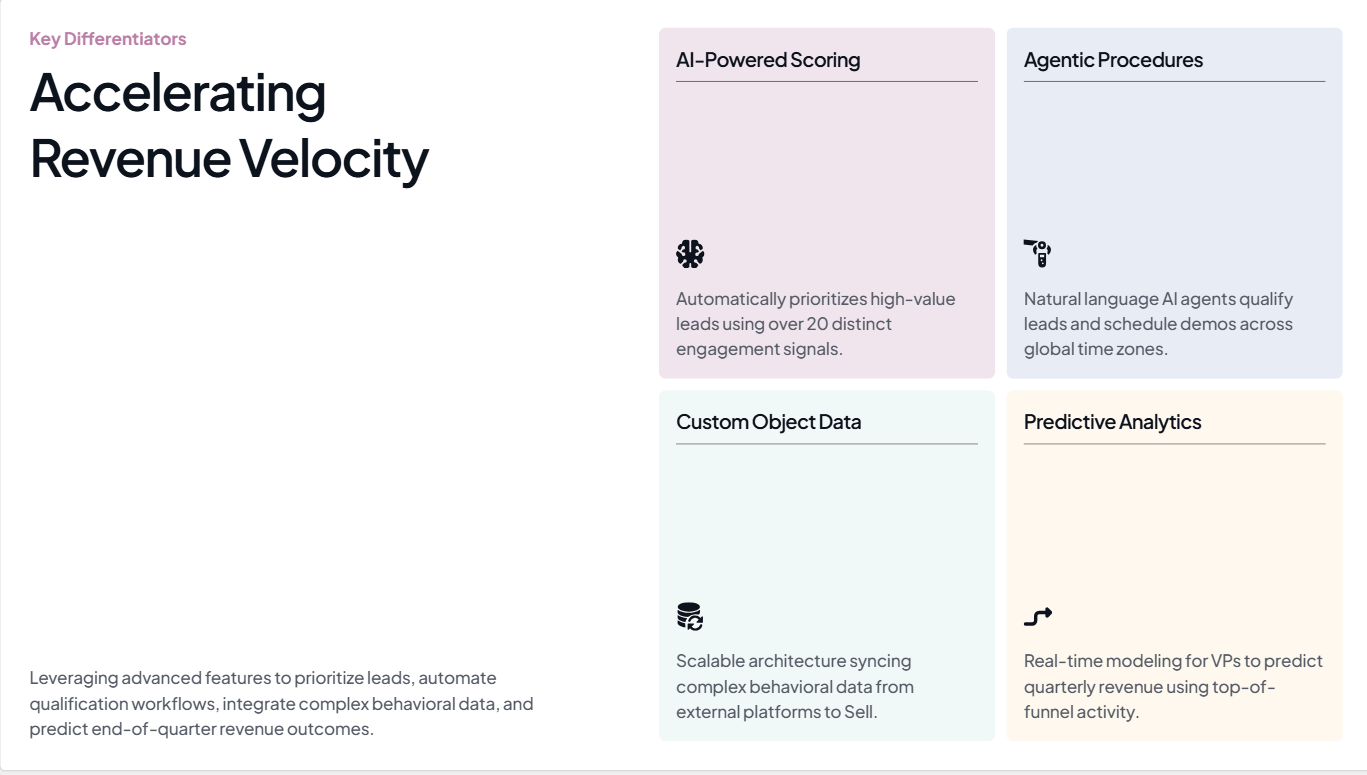
On this slide generated by Presentations.ai, the key idea is accelerating revenue velocity
Source
Mistake 4: Ignoring Design Consistency
A common complaint about AI-generated presentations is that they look like a template someone borrowed, not like something that came from your company. The colors are slightly off. The fonts do not match your brand. The logo is on the first slide and nowhere else. By slide three, the deck already looks like it belongs to someone else.
This happens because most AI presentation tools do not know anything about your brand unless you tell them. They apply whatever default visual theme they have, which may look clean but carries zero brand identity. When your deck reaches a decision-maker who has never met you, that lack of identity is a problem.
The fix
Before you generate anything, make sure your tool knows your brand. At a minimum, that means specifying your primary colors and font, and providing your logo. If you are adjusting these manually after generation, block a few extra minutes to go through every slide and make sure the visual style is consistent from start to finish. Pay attention to icon sets, image tone, and background treatments, as those tend to drift slide-by-slide in AI output.
Mistake 5: Trusting AI-Generated Facts Without Checking Them
AI tools will generate statistics, market figures, and research citations with complete confidence. Some of those numbers are accurate. Many are not. The problem is that there is no visible difference between the real ones and the fabricated ones in the output. They sit next to each other on the same slide, formatted identically, with no indication of which ones you can actually present in a meeting.

Always verify numbers you see on AI-generated presentations
Source
Presenting a hallucinated statistic in front of a room that includes someone who knows the actual figure is an uncomfortable experience. Presenting one in a board deck or an investor pitch is worse. It raises questions about every other claim in your presentation, not just the one that turned out to be wrong.
The fix
Treat every AI-generated statistic as a placeholder. During your editing pass, open a browser tab and verify each data point against a primary source. If you cannot find the source in 30 to 60 seconds, replace the number with language you can actually stand behind. "Significantly faster" without a specific percentage is not as impressive, but it is far safer than a percentage that does not hold up. For any data slide that matters, supply the numbers yourself rather than asking the AI to invent them.
Presentations.AI's editor makes it easy to swap in your verified data without breaking the layout. Try it for free.
A note on fact-checking
This is the one mistake that no AI tool fully solves today. The verification step is always yours. What a good tool can do is make it easy to edit individual slides and swap in your verified data without disrupting the layout. Presentations.ai's editing interface is built for that kind of targeted revision.
Mistake 6: Generating Too Many Slides
When you give an AI tool a moderately complex topic without specifying a slide count, it usually produces more slides than you need. The tool is optimizing for coverage. It wants to make sure nothing is left out, so it adds a slide for every sub-point and sub-sub-point until the deck feels comprehensive.
A 20-slide deck when you needed 10 does not give your argument more weight. It dilutes it. The three or four slides where your real point lives get buried in slides that add context nobody asked for. Your audience loses the thread, and you spend the presentation rushing through slides you should have cut.
The fix
Specify your slide count in the prompt. "Build an 8-slide deck" yields a meaningfully different output than an open-ended request. After generating, go through the deck in thumbnail view and ask yourself, for each slide: would I actually talk about this if I had 5 minutes less? If the answer is no, cut it. A shorter deck with a clear argument lands better than a long deck that covers everything.
Mistake 7: Skipping a Narrative Structure
AI presentation tools are good at organizing information into a logical sequence. They are not good at crafting an argument that leads to a conclusion. There is a difference between a list of related topics and a presentation that moves an audience from a problem they recognize to a solution they want. Most AI-generated decks produce the former.
The result is a deck that feels like a report read in slide format. Each slide makes sense on its own, but nothing builds on it. There is no tension, no turn, no moment where the argument shifts from setup to recommendation. Audiences disengage because the deck is not going anywhere.
The fix
After you have generated your deck, restructure it into three movements. The first section, roughly the first two or three slides, establishes the problem and why it matters now. The middle section presents your solution with supporting evidence. The final section, the last one or two slides, names a specific action. The content the AI generated may be largely fine. The sequence probably needs work. Moving slides around until the structure follows that shape is usually all it takes. To deep-dive into this topic, read our blog.
How Presentations.ai Reduces These Mistakes by Default
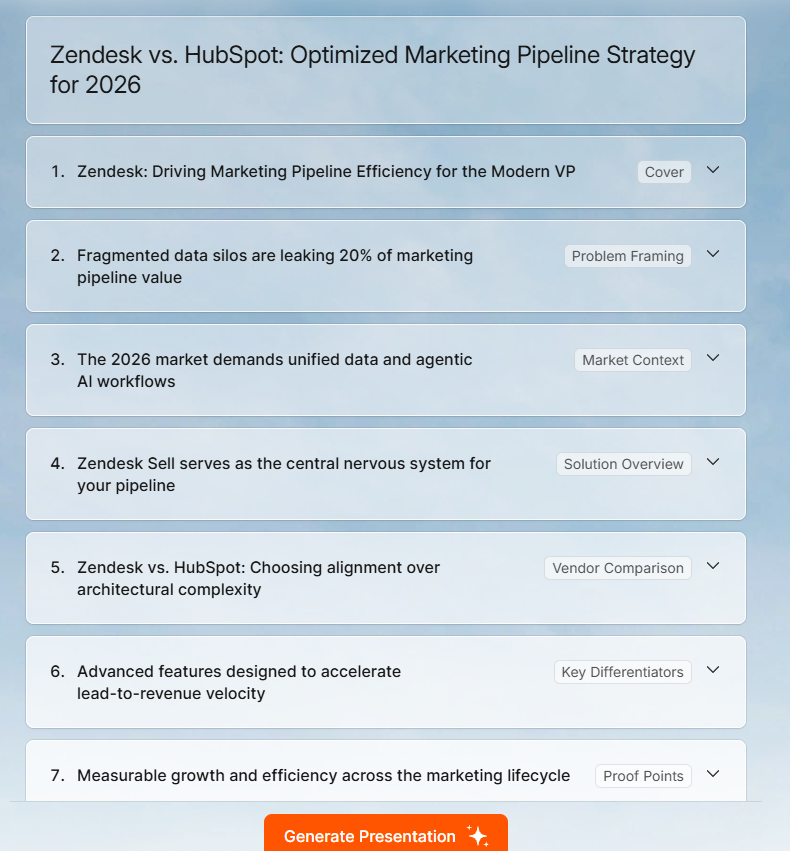
Structure of a presentation generated by Presentations.ai
Most of the mistakes above come down to two things: unclear inputs and skipped editing. Our Presentation ai platform is built around reducing both.. You can read more about the full feature set on the Presentations.ai AI presentation maker page, but here is how it specifically addresses the most common problems.
Brand Sync: Provide your company URL, and Presentations.ai automatically pulls your colors, fonts, and logo. Every slide in the generated deck reflects your brand from the start, without any manual configuration.
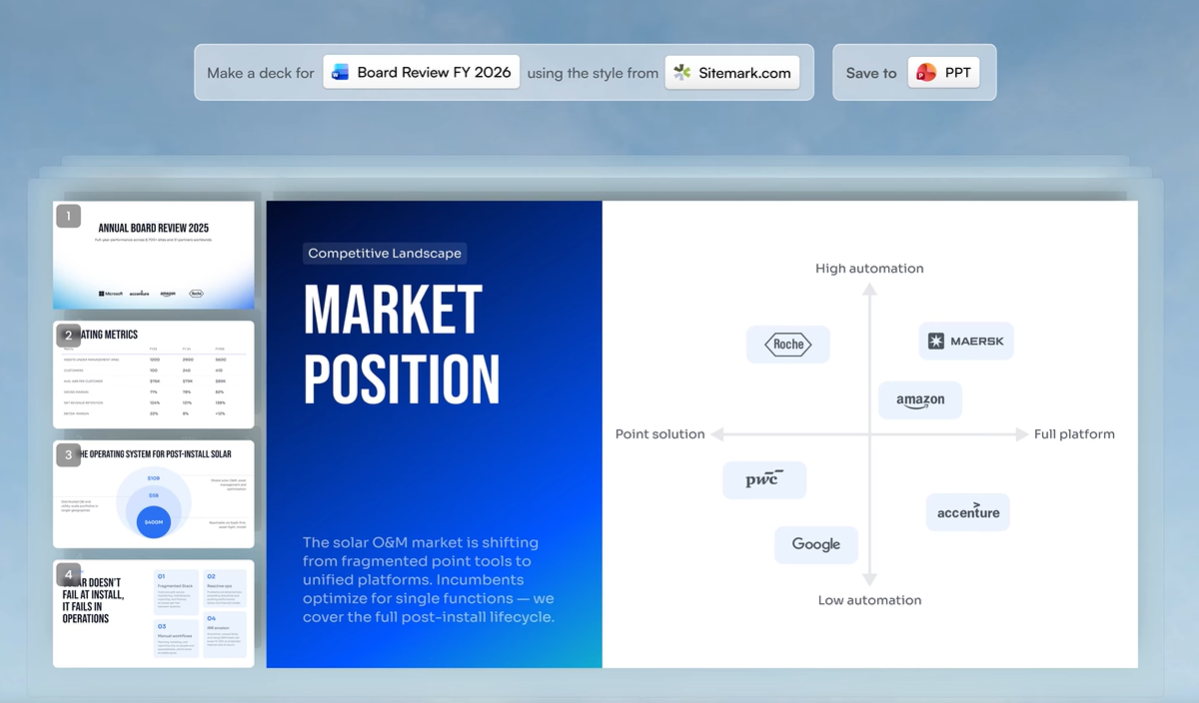
Presentations.ai can pick up your brand’s colors and fonts straight from your URL
Flexible templates: The layouts adapt as you edit rather than breaking when you remove content. That makes it easier to simplify slides and cut text without rebuilding the layout from scratch. Check out Presentation.ai’s templates here.
Multiple input formats: Beyond a text prompt, you can upload PDFs, Word documents, or paste a URL as your starting point. That grounds the AI in your actual content rather than generic information about your topic.
Clip-E conversational editing: After generation, you refine the deck through a chat interface. Ask for a specific slide to be rewritten, shortened, or restructured without touching the other slides. That makes the editing pass faster and more targeted.
PowerPoint export: Decks export to .pptx with full fidelity. Fonts, layouts, and brand elements transfer intact, so what you see in the editor is what your audience sees when they open the presentation in PowerPoint.
None of this eliminates the need for your editing pass, particularly the data verification step. But it reduces the number of things you need to fix and makes the remaining fixes faster to apply.
The Bottom Line
AI presentation tools are genuinely useful. They are not useful because they produce finished decks. They are useful because they produce strong first drafts very quickly, which gives you something real to work with rather than a blank slide and a deadline.
The seven mistakes in this post all stem from the same core issue: treating AI output as done when it is only a starting point. The fixes are not complicated. Better prompts, a short editing pass, a slide count constraint, a structure check, and verified data will transform most AI-generated decks from something that looks fine into something that actually works.
If you want to start with a tool that handles brand consistency and layout issues automatically, so your editing pass can focus on content rather than formatting, Presentations.ai is built for that. Try it free at presentations.ai.
Build Better Presentations with Presentations.ai
Get from idea to finished deck in minutes.
Try Presentations.ai Free
(No Credit Card Required)