谷歌幻灯片到 PPT

在不丢失格式的情况下将谷歌幻灯片转换为 PowerP

一个更智能的转换引擎,可以保留字体、修复图表渲染,并将布局重建为干净的原生 PowerPoint 文件。

免费将谷歌幻灯片转换为 PPT

开始 200 个 AI 积分

修复了字体和布局问题

导出为可编辑的 .pptx

成为你注定要成为的演讲巨星

使用 AI 创建 PPT、信息图表、图表、时间表、项目计划、报告、产品路线图等。毫不费力,引人入胜,可免费试用。

免费试用谷歌幻灯片转PPT

Google 幻灯片 PPTX 导出为何失败

Google 幻灯片内置的“文件 > 下载 > PPTX”选项,要求两个不同的渲染系统在它们之间转换幻灯片。它们之间语言不通,结果往往在您第一次客户会议前就暴露无遗。请看 我们与 Google 幻灯片有何不同 以了解详细分析。

字体替换导致标题错乱

Google 的网络字体在 Microsoft 365 中不存在。文本溢出、标题错位,在 Chrome 中看起来整洁的幻灯片,在 PowerPoint 中却显示错误。

图表网格线错误

在浏览器中完美呈现的图表,导出后却出现黑色网格线或损坏的数据标签。

每张幻灯片布局偏移

文本框和按钮的物理位置发生偏移,需要对每张幻灯片进行手动修复,才能让演示文稿拿得出手。

Presentations.AI 采取了完全不同的方法。

我们的 Google 幻灯片转 PPT 转换器为何有效

我们没有让 Google 和 PowerPoint 直接“对话”,而是导入您的 Google 幻灯片的 PDF 快照——精确冻结其视觉状态——然后利用 AI 从头开始将其重构为干净的原生 PowerPoint 文件。

字体完美映射到 Microsoft 365

AI 将 Google 的网络字体映射到最接近的标准等效字体,确保标题在任何运行 Microsoft 365 的机器上都能正确呈现——没有溢出,也没有替换伪影。

图表重构,而非传输

我们的引擎没有在平台之间传输图表数据,而是直接重构视觉层——每次都能输出清晰的网格线、正确的标签和专业的成果。

完全可编辑的原生 PowerPoint 输出

重构完整的幻灯片结构,使每个文本框和形状都可以在 PowerPoint 中原生编辑。无需从头开始即可进行最后一刻的修改。使用我们的 AI 演示文稿制作工具 从头开始构建新演示文稿。

品牌同步在转换过程中应用

平台迁移是执行品牌标准的理想时机。输入您的网址,然后 品牌同步 在转换过程中应用您的企业颜色和字体——最终的演示文稿会自动符合品牌规范。探索我们的 专业模板 以搭配您转换后的演示文稿。

如何将 Google 幻灯片转换为 PowerPoint

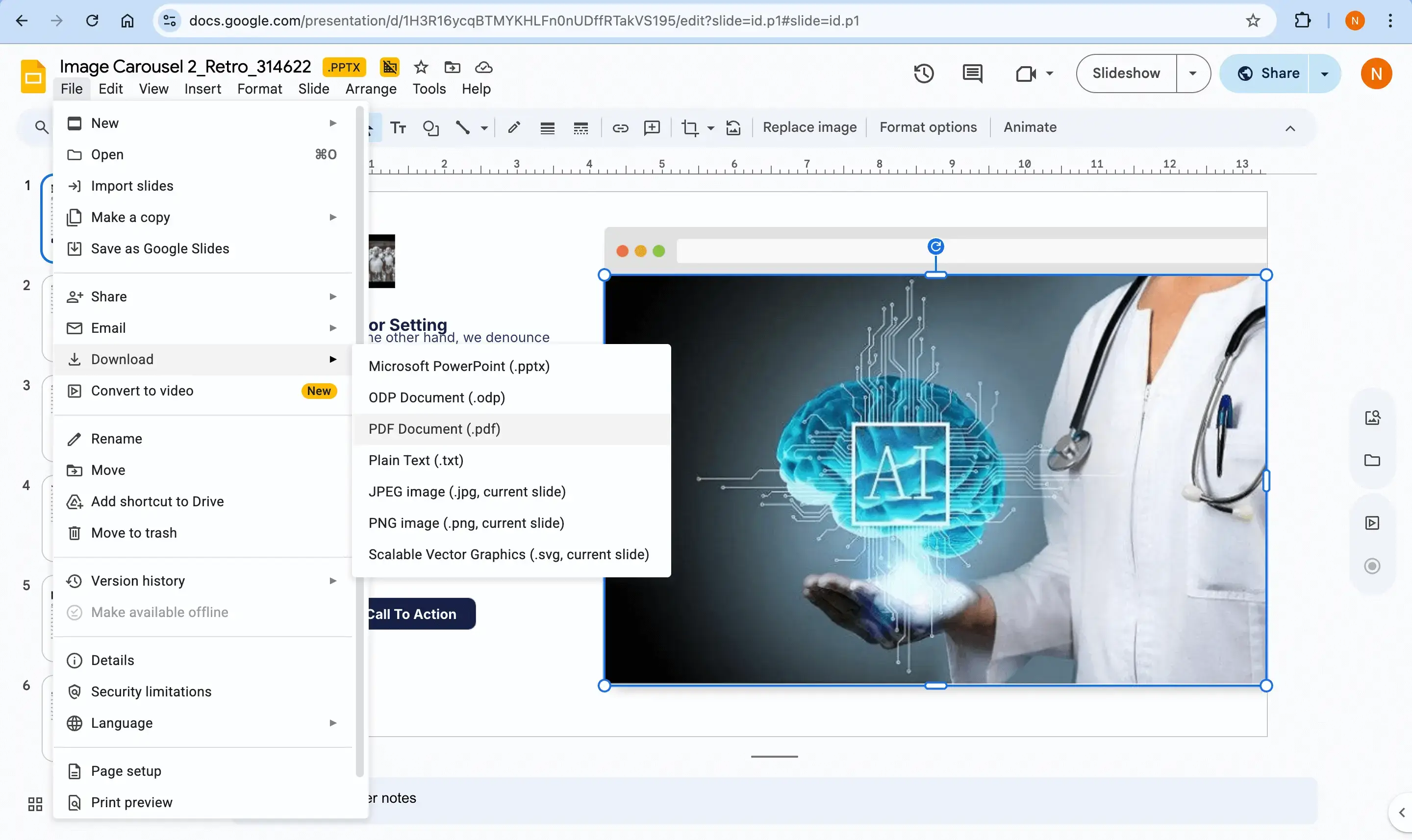
步骤 1 — 将您的 Google 幻灯片导出为 PDF

在 Google 幻灯片中,导航至“文件”>“下载”>“PDF 文档”。这会冻结视觉状态并保留您的精确设计——这是传输幻灯片最简洁的方式,因为内置的 PPTX 导出存在上述已知错误。

已经有 PDF 了?直接跳到步骤 2,使用我们的 PDF 转 PPT 转换器

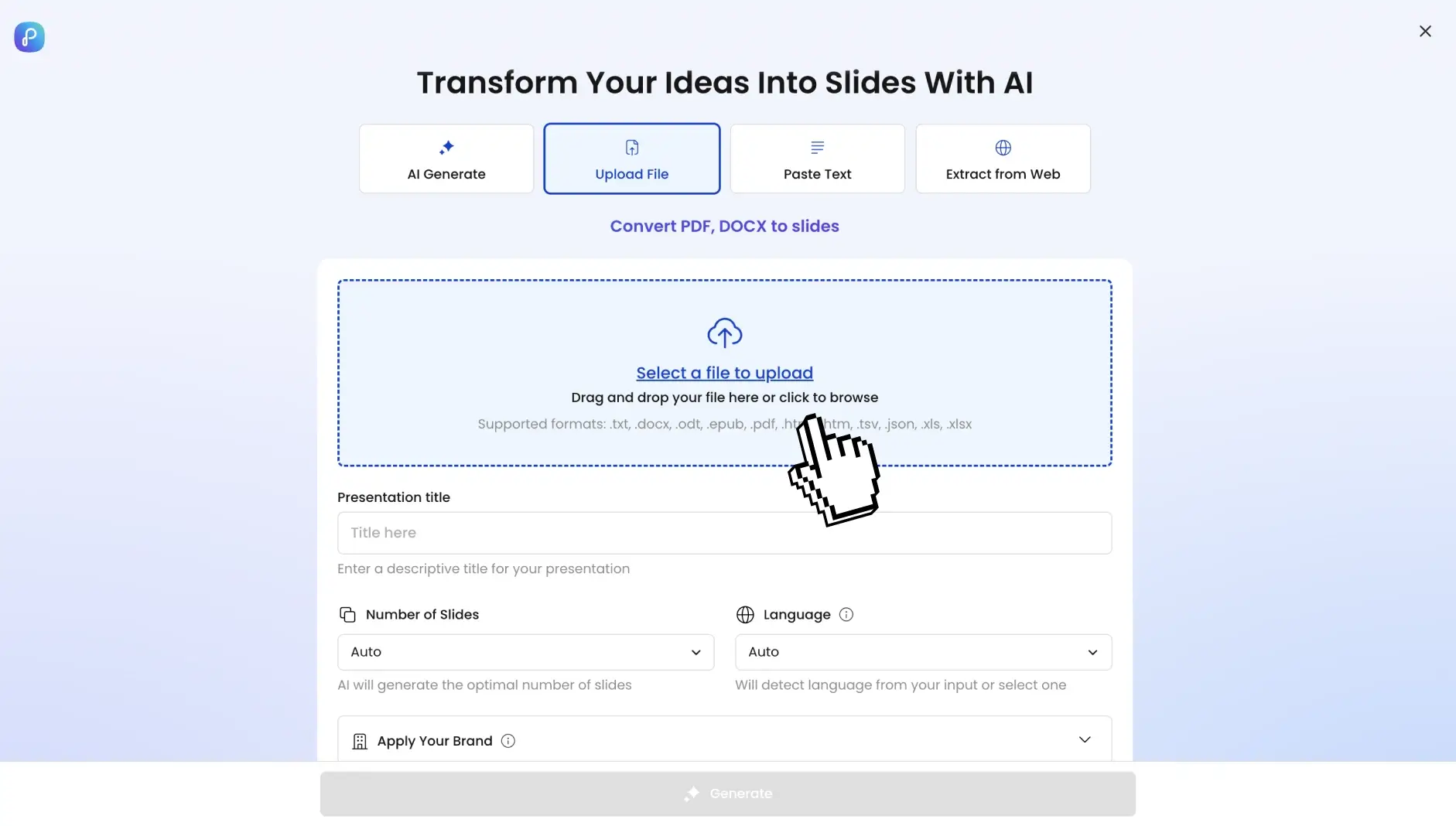
步骤 2 — 将 PDF 上传到 Presentations.AI

将 PDF 上传到您的仪表板。AI 使用 OCR 和深度学习来识别结构元素,包括标题、项目符号列表和图像。
pdftodeck_2

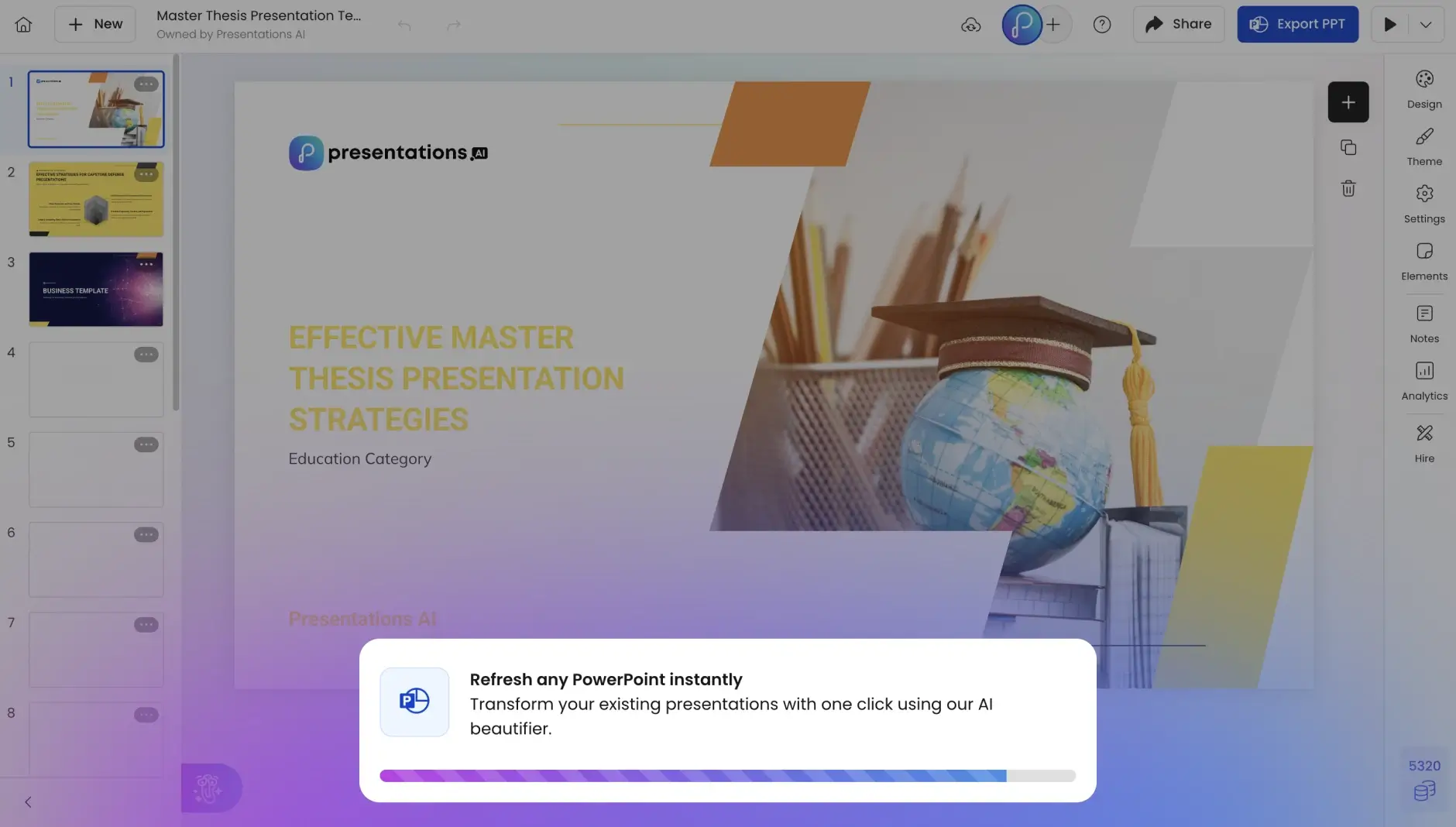
步骤 3 — AI 重构您的演示文稿

品牌同步 自动应用您的企业颜色和字体。布局优化会将密集的文本块转换为视觉网格、时间轴或适当的结构化布局。
pdftodeck_4

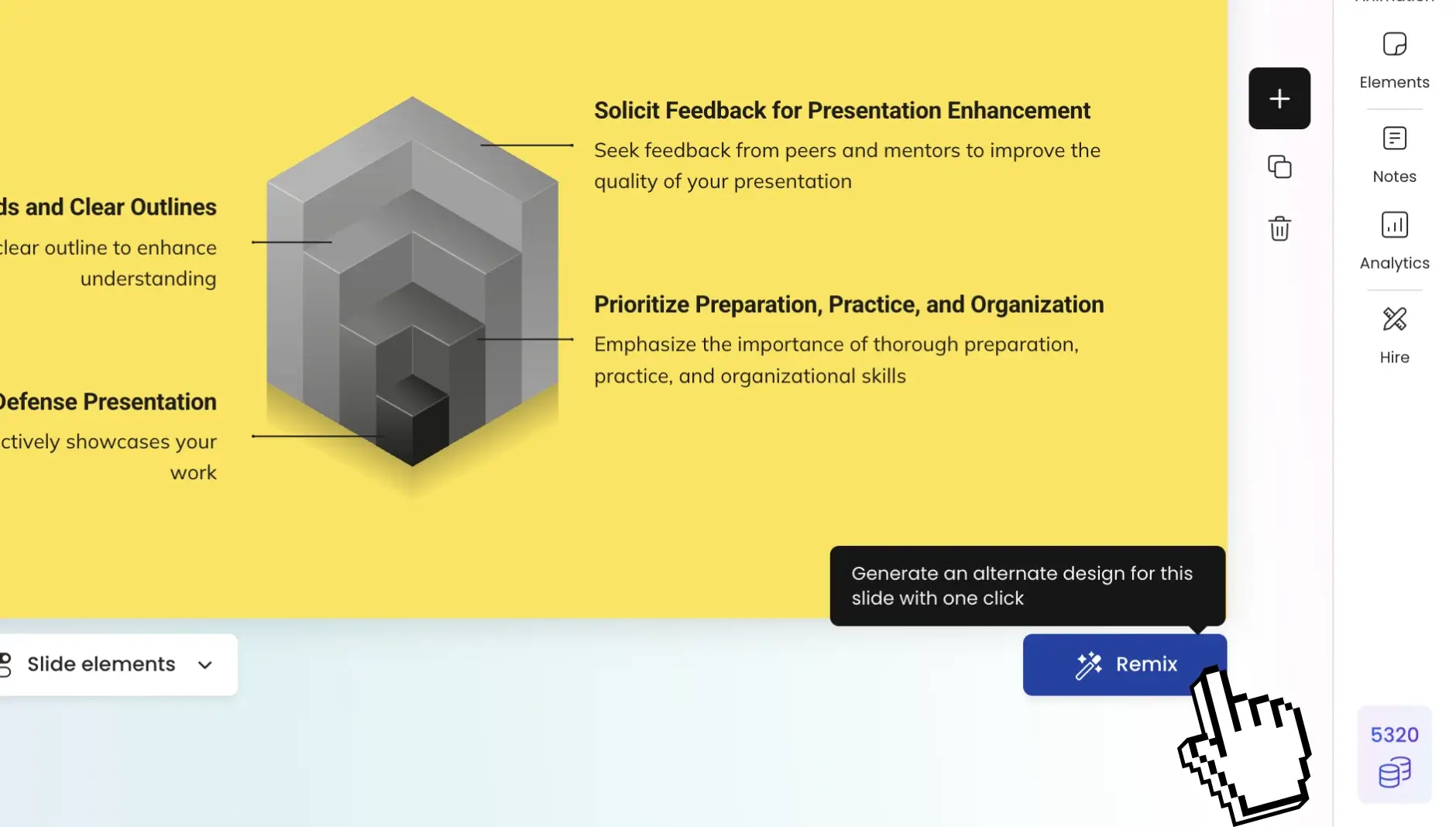
步骤 4 — 下载为原生 PowerPoint

导出干净的 .pptx 文件,其中包含可编辑文本、原生 PowerPoint 对象和稳定的设计。查看我们的 定价页面 查看免费包含的内容。
pdftodeck_5

Google 幻灯片原生导出 vs Presentations.ai

只需五秒,即可见证不同:

Capability Google Slides Native Export Presentations.ai Converter
Font preservation Fonts are substituted with Microsoft defaults, often causing text overflow and spacing issues. Fonts are mapped to the closest Microsoft 365 equivalents for better visual consistency.
Chart rendering Common rendering issues include black gridlines and broken chart labels. Charts are reconstructed cleanly using the visual presentation layer.
Layout fidelity Text boxes and slide elements often drift or shift position after export. Slide positioning is preserved using PDF-style visual reconstruction.
Editability Slides remain editable but typically require extensive manual corrections. Outputs fully editable native PowerPoint objects with cleaner structure.
Brand consistency Brand fonts and colors are frequently reset during export. Brand Sync automatically applies consistent colors, typography, and presentation styling.

其他 AI PPT 工具

PDF 转 PPT

已经有 PDF 文件?直接转换,无需从 Google 幻灯片导出。 立即开始 →

Word 转 PPT

将任何 DOC 或 DOCX 文件转换为专业的、可编辑的 PowerPoint 演示文稿。 立即开始 →

Excel 转 PPT

将电子表格转换为幻灯片,并自动生成图表和数据洞察。 立即开始 →

URL 转 PPT

粘贴网页链接,即可在几秒钟内获得一份完整设计的演示文稿。 立即开始 →

大纲转 PPT

根据您的要点大纲构建演示文稿——AI 将为您构建和设计。 立即开始 →

成为你注定会成为的演示达人

利用AI创建PPT、信息图表、图表、时间轴、项目计划、报告、产品路线图等。轻松、引人入胜,免费试用。

免费试用Google幻灯片转PPT →

Divider Lines
Testimonials Background

客户评价

听听全球团队对Presentations.AI的评价

我需要一份用于投资的路演演示文稿,但我没有商业背景。您的AI在几分钟内就创建了一份近乎完美的演示文稿。

艾琳·T·鲁西

Erin T. Roussey – Presentations.AI Customer Review

您的产品在研究方面显然非常出色。我获得了关于这家初创公司的数据,有些甚至是我以前不知道的。设计和动画也很棒,总体而言,我发现这款产品是一个非常有帮助、实用且充满活力的工具。

苏默·潘迪

Sumer Pandey – Presentations.AI User Testimonial

您的产品在根据我的提示和对技术主题的简短概述来创建演示文稿方面表现出色。为这些场景生成的主题内容,其结构方式尤其引人入胜,而动画布局也特别令人惊喜。总的来说,这是一个颠覆性的产品!

克里斯·格林汉姆

Chris Greenham – Presentations.AI Customer Testimonial

起草长篇文档后,我很难对其进行总结并准备演示文稿。我发现这个平台出乎意料地直观且高效。演示文稿的质量正是我们首次客户演示所需要的。

坦宾科西·西贝科

Thembinkosi Sibeko – Presentations.AI User Review
Divider Lines

经常问的问题

Why does Google Slides' built-in PPTX export break formatting?

Down IconUp Icon

Google Slides and Microsoft PowerPoint use different rendering systems. When you export directly, fonts get substituted, charts develop gridline artifacts, and text boxes shift position. Presentations.AI avoids this by working from a PDF snapshot of your slides and reconstructing the file as native PowerPoint — bypassing the compatibility gap entirely.

Can I convert Google Slides directly without exporting to PDF first?

Down IconUp Icon

The PDF intermediate step is intentional — it freezes your exact visual design before conversion. Direct .gslides uploads introduce the same font and layout bugs that Google's own export creates. If you already have a PDF version of your slides, you can skip straight to upload.

Will my animations and transitions be preserved?

Down IconUp Icon

Animations and transitions are not carried over during conversion. The PDF snapshot captures the static design state of each slide. If your presentation relies heavily on animations, you'll need to re-add them in PowerPoint after export.

Are speaker notes carried over?

Down IconUp Icon

Speaker notes are not captured in the PDF export from Google Slides. If you need them, copy your notes manually from Google Slides before conversion and paste them into the PowerPoint notes panel after download.

What happens to embedded videos and audio?

Down IconUp Icon

Embedded videos and audio files are not preserved during PDF-based conversion. The slide's visual content is retained, but media elements will need to be re-embedded in PowerPoint after export.