TL;DR
- Beautiful.ai’s Smart Slides system handles design automatically, saving time but limiting creative control.
- Pricing starts at $12/month (billed annually) for individuals. Team plans jump to $40/user/month, which adds up fast for growing organizations.
- There is no free plan. Only a 14-day trial that requires a credit card and auto-renews into an annual subscription.
- User reviews on G2 and Capterra praise its speed and polish. But Trustpilot reviews are more polarized, with recurring complaints about billing practices and limited customization.
- If you need more advanced AI-driven content generation, brand sync, and a conversational AI assistant to help you build and refine decks, alternatives like Presentations AI may be worth evaluating for more advanced needs.
Beautiful.ai is a cloud-based presentation tool that uses AI-powered "Smart Slides" to automate layout, spacing, and alignment as you build your deck. It's positioned as a faster, easier alternative to PowerPoint for professionals who want polished slides without the design effort.
Since its launch, Beautiful.ai has been rated highly on platforms such as G2, with over 190 reviewers’ ratings averaging at 4.7 out of 5. But in 2026, the AI presentation space will be more crowded than ever. Tools like Presentations.AI, Gamma, and Canva are all competing for the same audience.
So the real question is: does Beautiful.ai still hold up? We tested Beautiful.ai's plans over three weeks, evaluating them based on criteria such as export quality, brand control, AI capabilities, and ease of use.
This review covers features, pricing, real user feedback, and how it compares to top alternatives in 2026
Our Review Methodology
We tested Beautiful.ai hands-on to give you an accurate picture of what the tool actually delivers. Here's what our evaluation covered:
- Plans tested: Pro and Team
- Testing duration: 3 weeks
- Deck types created: Sales pitches, internal reports, onboarding presentations, and investor decks
- Features evaluated: AI content generation, Smart Slide layouts, brand controls, real-time collaboration, and viewer analytics
- Export quality: PowerPoint and PDF exports tested for formatting accuracy
- User reviews cross-checked: G2, Capterra, and Trustpilot (reviews from the last six months only)
- Pricing verified: Directly from Beautiful.ai's website at the time of publication
Quick Verdict
Score: 7.5/10
Beautiful.ai does one thing well: it makes average presenters look good, fast. The auto-layout engine is genuinely useful, and the learning curve is minimal. But the lack of a free plan, rigid Smart Slide templates, and a pricing jump between Pro and Team tiers hold it back from being a complete solution for most teams.
Best for:
- Solo consultants and freelancers who create client-facing decks regularly and want consistent, clean output without hiring a designer.
- Sales teams need to update pitch decks quickly and track viewer engagement through built-in analytics.
- Non-designers in marketing, HR, or L&D roles who want professional slides without learning complex tools.
- Startup founders building investor decks or board presentations on a tight timeline.
Beautiful.ai: Quick Verdict
At a glance
- G2: 4.7/5 (195 reviews) | Capterra: 4.2/5 (85 reviews) | Trustpilot: 2.9/5 (236 reviews)
- Starting price: $12/month (billed annually)
- Free plan: No free plan; 14-day trial available (credit card required)
- Best for: Non-designers who need fast, polished presentations
- Biggest limitation: Limited design flexibility and lighter AI capabilities than newer AI presentation tools
Our overall score for Beautiful.ai: 7.5 out of 10
Based on our testing, Beautiful.ai is at its best when you need to create professional presentations quickly without worrying about design details. The platform's automated layouts do a good job of keeping slides visually consistent, making it a strong fit for consultants, sales teams, startup founders, and business professionals who build presentations regularly and value efficiency over customization.
That same automation is also where some of its limitations become apparent. During our evaluation, we found that users who need precise control over layouts, complex brand customization, or advanced AI-assisted content creation may find the platform restrictive.
The Team plan can also become expensive as organizations scale, and Beautiful.ai isn't the strongest option for highly data-heavy presentations that rely on sophisticated charts, tables, and visualizations.
What is Beautiful.ai (And How It's Different)
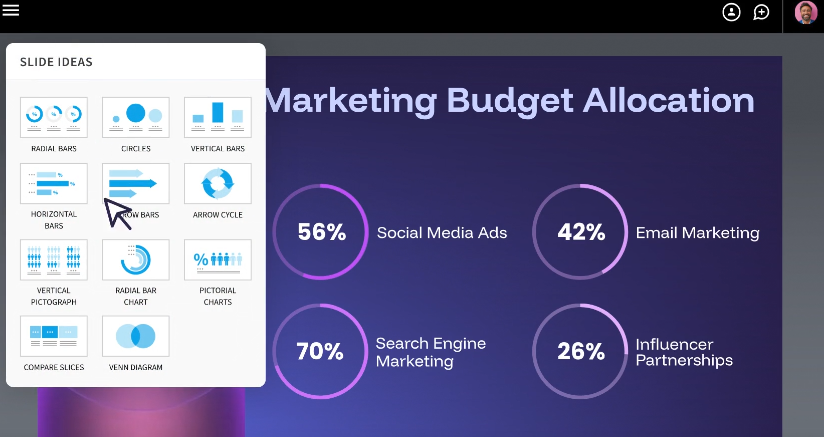
Beautiful.ai's core differentiator is its "Smart Slides" system. Instead of giving you a blank canvas where you manually drag, resize, and align every element, Beautiful.ai provides intelligent templates that automatically adjust their layout as you add or remove content.
Add a bullet point, and the spacing recalibrates. Drop in an image, and the text reflows around it. Remove a chart, and the remaining elements redistribute. The idea is that you never have to think about formatting. You focus on content; the tool handles design.
This is fundamentally different from tools like PowerPoint or Google Slides, where every formatting decision is manual. It's also different from fully AI-generative tools like Presentations AI, which go beyond layout and actually draft content, research topics, and build entire decks from a prompt.
Beautiful.ai sits in between: it's smarter than a traditional slide editor, but less autonomous than a full AI presentation maker. That middle ground works well for people who already know what they want to say and just need help making it look good.
Key Features That Matter in Real Work
Smart slide layouts (Auto design)
This is the flagship feature. Every slide type in Beautiful.ai comes with built-in design intelligence. As you add text, images, charts, or icons, the layout adjusts in real time to maintain visual balance. Spacing, alignment, and hierarchy are handled automatically.
On G2, users consistently highlight this as the biggest time-saver. Multiple reviewers report cutting design time by 50%-75% compared to PowerPoint. For recurring deck types like weekly reports or quarterly updates, the efficiency gains compound quickly.
The trade-off is control. You cannot freely drag elements to arbitrary positions on the slide. The Smart Slide system decides where things go based on its internal rules, and while those rules usually produce clean results, they can feel rigid when you have a specific layout in mind.
Templates and slide types
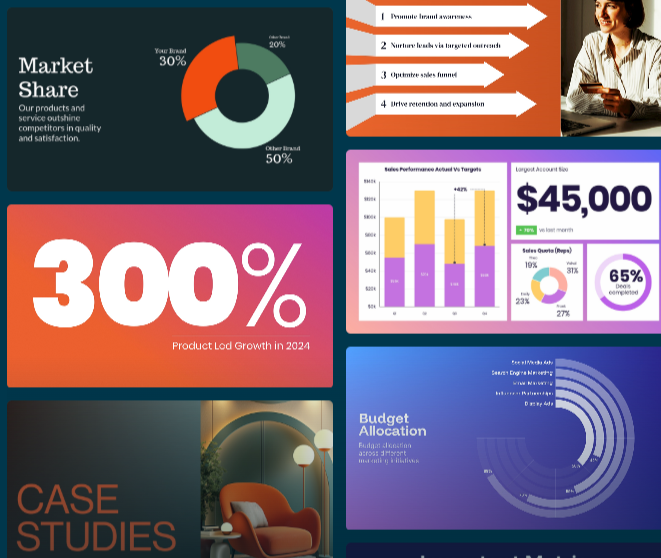
Beautiful.ai offers a library of smart templates organized by use case: pitch decks, project updates, training materials, marketing plans, and more. Each template includes multiple pre-built slide types (timelines, comparison grids, data charts, team bios, etc.) that maintain the Smart Slide behavior.
The templates are well-designed and consistently professional. However, several users across G2 and Capterra note that the template library has been slow to expand. Some long-term users report seeing largely the same options over extended periods. For teams that produce a high volume of decks, the visual variety can start to feel limited.
Team collaboration
On the Team and Enterprise plans, Beautiful.ai supports real-time co-editing similar to Google Docs. Multiple users can work on the same deck simultaneously, leave comments on specific slides, and track version history. Role-based permissions let admins control who can edit versus view.
The collaboration features are functional and generally reliable, though some users on G2 and Capterra report occasional bugs when multiple editors are active simultaneously.
The Pro plan does not include collaboration. If you're working solo, that's fine. But if even two people need to co-edit decks, you're looking at the Team plan, and that pricing jump from $12/month to $40/user/month is significant.
Brand controls (themes, fonts, colors)
Beautiful.ai's Brand Kit feature (available on Team and Enterprise plans) lets you store your company's logos, color palettes, fonts, and footer styles in a centralized library. When team members create new presentations, these brand elements apply automatically.
Updates to the Brand Kit propagate across all presentations that use it, eliminating the common problem of outdated brand elements lingering in old decks. For enterprises managing multiple brands or client identities, Beautiful.ai supports multiple Brand Kits within a single organization.
The brand controls cover the essentials well. Where they fall short is in enforcing more nuanced brand guidelines, such as specific layout structures, mandatory slide sequences, or detailed visual rules that go beyond colors and fonts.
Assets and visual library
Beautiful.ai includes a built-in library of stock photos, icons, and videos that you can add to slides without leaving the editor. This removes the friction of searching for visuals externally and manually importing them.
The stock library is serviceable for most business presentations. It won't replace a dedicated design resource for brand-specific imagery, but it's more than enough for internal decks, training materials, and general-purpose presentations.
Export and sharing options
You can share Beautiful.ai presentations via a link (with viewer analytics tracking) or export to PowerPoint and PDF. The link-sharing option includes engagement metrics such as who viewed the deck, time spent per slide, and completion rate, which are particularly useful for sales teams tracking prospect engagement.
PowerPoint export is a noted pain point in user reviews. Several users on Capterra and Reddit report that exported files can have formatting issues: text that was a single block in Beautiful.ai sometimes breaks into individual text boxes in PowerPoint, and alignment can shift. If your workflow requires delivering editable PowerPoint files to clients, test the export quality before committing to it.
Usability and Editing Experience
This is where Beautiful.ai shines. Many users report creating presentation-ready decks in under an hour thanks to Smart Slides and pre-built templates. Instead of starting from scratch, you choose a slide type, add content, and let the platform handle the design. For recurring presentations like sales pitches, reports, or team updates, the time savings can be substantial.
The same system that makes Beautiful.ai fast also limits flexibility. You cannot freely position elements or override Smart Slide layout decisions.
For most business users, that's a benefit. It prevents poor design choices and keeps presentations looking professional. But if you need pixel-level control or highly customized layouts, the restrictions can become frustrating. Smart Slides get most design decisions right, but when they don't, your options are limited.
AI Capabilities (What It Can and Can't Do)
AI for outlines and slide drafts
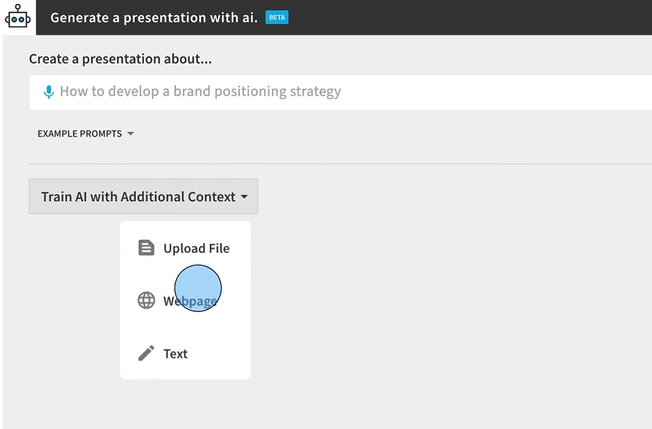
Beautiful.ai's DesignerBot can generate a full presentation draft from a text prompt. You describe what you need, and the AI creates an outline and populates slides with content. It's a useful starting point that can save significant time compared to building from scratch.
The output is typically well-structured and logically organized. For straightforward deck types like company overviews, project updates, or sales pitches, the first draft is often 70-80% usable with some editing.
AI for rewriting and content polishing
Once you have content on a slide, the AI can help rewrite text for clarity, shorten verbose copy, or adjust tone. This helps tighten messaging on individual slides without manually reworking everything.
Where AI still struggles
Beautiful.ai's AI is primarily a layout and drafting assistant. It doesn't research topics on the web, pull in real-time data, or generate deeply contextual content based on your specific business.
Several users across G2 and Reddit note that AI-generated content can feel generic, especially for specialized or technical topics. The AI also doesn't add new slides to an existing deck after the initial generation; once the first draft is created, additional slides require manual work.
For teams that need an AI partner capable of understanding context, researching topics, and iterating on content conversationally, tools like Presentations AI (with its Clip-E assistant) offer a more advanced AI experience.
Beautiful.ai Pricing Overview
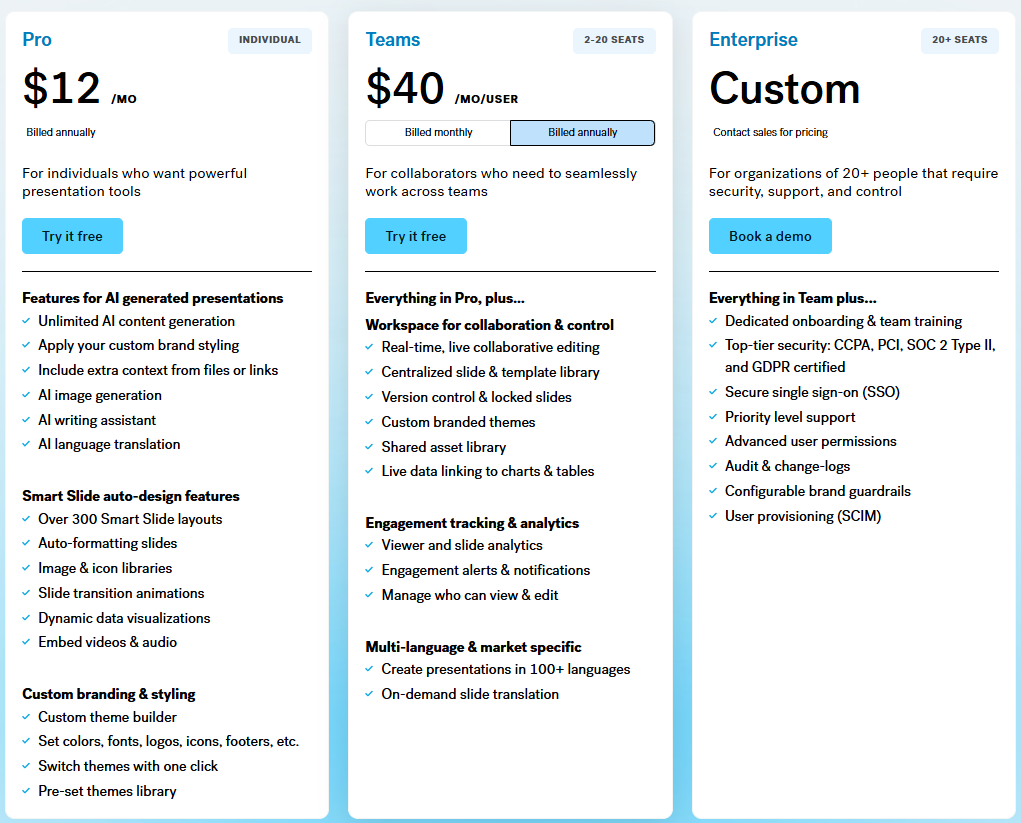
Beautiful.ai uses a subscription model with three tiers. For the full tier-by-tier breakdown, our beautiful ai pricing guide lays out every plan and what it includes.
What Pricing Usually Depends On
The main pricing drivers are: number of users (individual vs. team), billing frequency (annual vs. monthly), and the level of brand control and collaboration features required.
The biggest cost variable is the gap between the Pro plan (designed for solo users) and the Team plan (designed for groups). Moving from individual use to even a small team more than triples the per-user cost.
Monthly billing is available but carries a premium. The Pro plan jumps from $12/month (annual) to $45/month (monthly). The Team plan goes from $40/user/month (annual) to $50/user/month (monthly).
There is also a one-time option at $45 for a single presentation, which may suit users with a one-off project.
What's Typically Included in Higher Tiers
The Team plan adds centralized brand controls, shared asset libraries, real-time collaboration, engagement analytics, and admin tools. The Enterprise plan layers on SSO, SCIM provisioning, dedicated account management, priority support, and advanced security features.
The Pro plan covers unlimited slides, AI content generation, Smart Slides, custom fonts, PowerPoint/PDF export, and viewer analytics. For a solo user who doesn't need collaboration, Pro covers most needs.
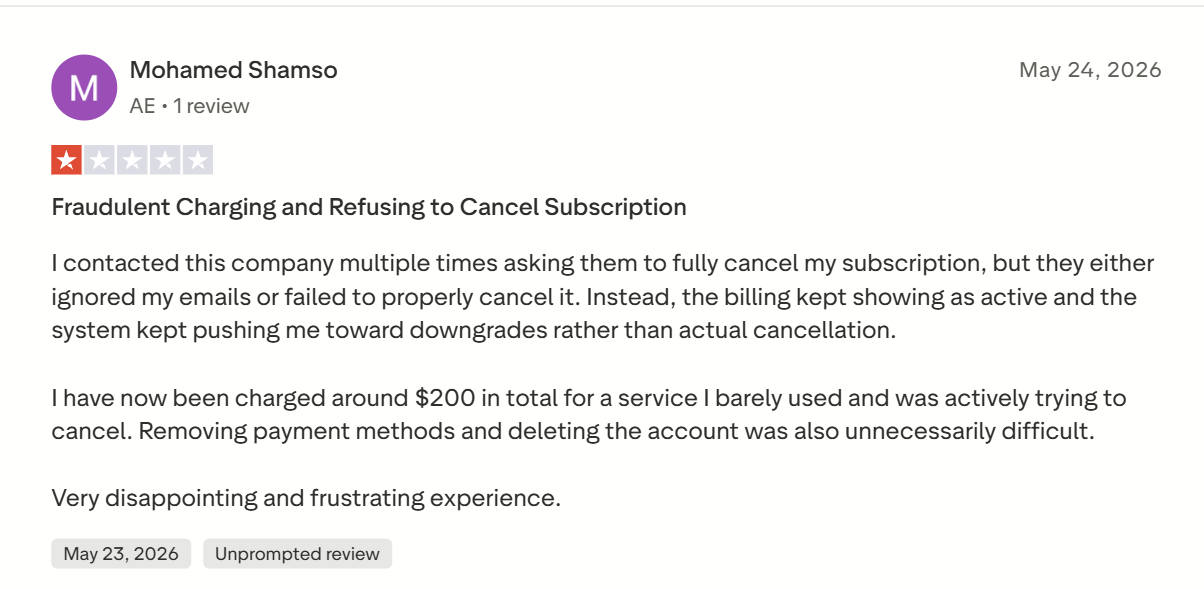
A 14-day free trial is available for both Pro and Team plans. It requires a credit card and auto-converts to a paid annual subscription if not cancelled before the trial ends. This is a recurring complaint across Trustpilot and Product Hunt, where multiple users report being charged for a full year after forgetting to cancel.
Usability and Editing Experience
How fast can you build a good deck?
This is where Beautiful.ai genuinely excels. Multiple users across review platforms report going from idea to a presentable deck in under an hour. For people who previously spent half a day wrestling with PowerPoint formatting, the time savings are real and immediate.
The combination of Smart Slides and pre-built templates means you never start from a blank screen. Pick a slide type, add your content, and the design handles itself. For recurring deck types like weekly standups or monthly reports, teams can produce consistent output in a fraction of the usual time.
Flexibility vs. template rules
The same system that makes Beautiful.ai fast is also its biggest limitation for power users. You cannot freely move elements around a slide. You cannot override the Smart Slide layout logic when it makes a decision you disagree with.
For most business presentations, this constraint is actually a feature. It prevents bad design decisions and keeps output consistently professional. But for users who want pixel-level control over their slides, or who need to create highly custom layouts for specific use cases, the rigidity can be frustrating.
As one G2 reviewer put it, the Smart Slides system is both the best and worst thing about the platform. It handles 90% of design decisions well, but when you disagree with the remaining 10%, there's no way to override them.
Real Use Cases for Beautiful.ai
Sales Decks and Pitches
Sales teams that constantly refresh their decks get a lot of mileage out of Beautiful.ai. The Smart Slide system makes it easy to swap in new case studies, update pricing slides, or tailor messaging for a specific prospect without rebuilding the deck from scratch.
A regional sales manager, for example, can take a master pitch template and produce a customized version for each account in under 30 minutes. The built-in viewer analytics add another layer of value, showing exactly which slides a prospect spent time on after the call.
Company Updates and Internal Decks
For recurring internal presentations like leadership updates, department reviews, or board decks, Beautiful.ai's consistency is a major advantage. Templates ensure that every update follows the same visual structure, saving time and keeping stakeholders focused on content rather than formatting changes.
Marketing and Campaign Decks
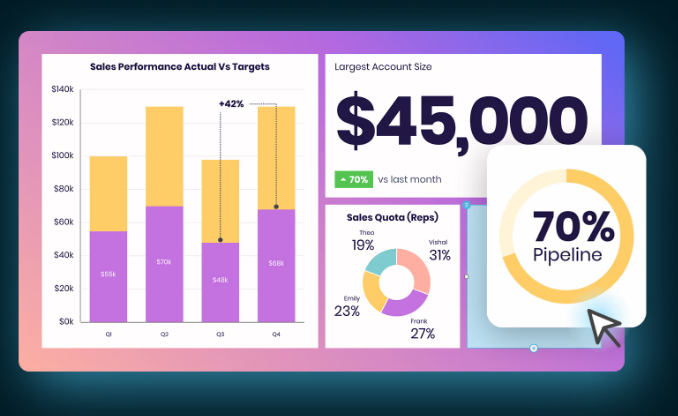
Marketing teams use Beautiful.ai to move quickly from brief to presentation without getting bogged down in formatting. Campaign proposals, launch plans, and creative briefs can be assembled in a single sitting using pre-built slide types for timelines, comparisons, and visual layouts.
A campaign lead pitching a new product launch internally, for instance, can pull together a 20-slide deck with consistent visuals and on-brand colors in a fraction of the time it would take in PowerPoint. The built-in stock library helps fill visual gaps without having to hunt for assets externally.
Training and Onboarding Decks
HR and L&D teams benefit from Beautiful.ai's ability to standardize presentations at scale. New hire onboarding decks, compliance training, and policy walkthroughs can be built once and reused across cohorts with minimal editing.
A people ops team onboarding 10 new hires a month, for example, can maintain a single master onboarding deck that stays visually consistent as content is updated each quarter. The Brand Kit feature on Team plans ensures every deck reflects the current company branding without someone having to check manually.
Founder Pitch Decks
Early-stage founders building investor decks often work under tight timelines with no design support. Beautiful.ai's Smart Slides system removes the formatting work entirely, letting founders focus on the narrative and financials rather than pixel-level slide design.
A pre-seed founder preparing for a demo day, for example, can build a clean 12-slide deck covering problem, solution, traction, and ask without hiring a designer or spending days in PowerPoint. The output looks professional enough for most seed-stage conversations, though founders with specific layout needs may hit the limits of the Smart Slide system.
What Real Users Say About Beautiful.ai
Beautiful.ai has a strong reputation for design quality and ease of use, though reviews point to a clear gap between what the product delivers and how the company handles support and billing.
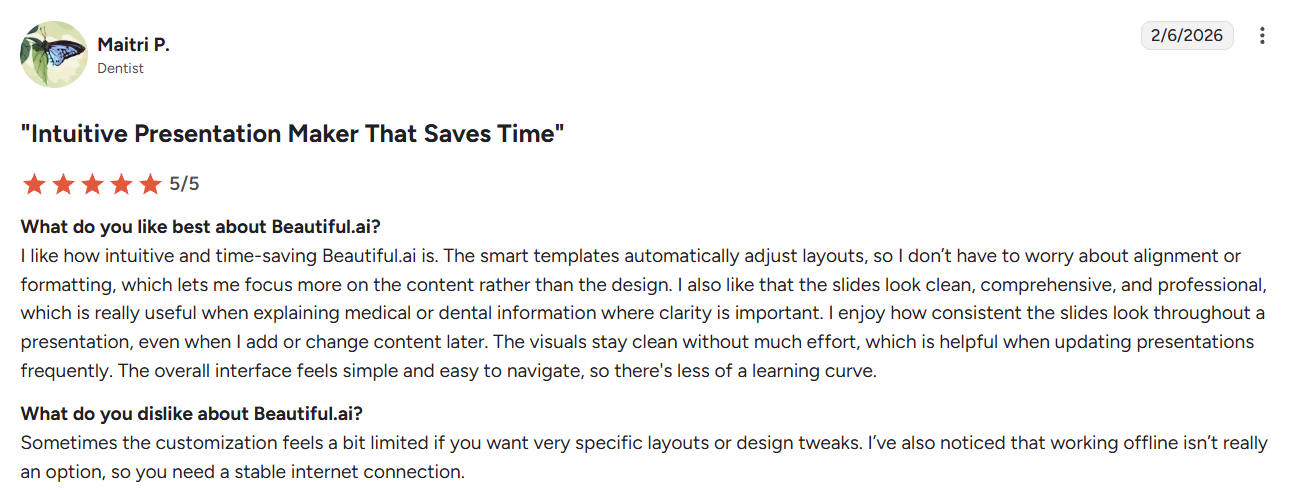
On G2 (4.7/5, 192 reviews), users consistently praise the tool for how quickly it produces professional-looking slides. Non-designers in particular highlight how much time the auto-layout engine saves them, and several reviewers note they've moved away from PowerPoint entirely for client-facing work. The main friction points are limited user customization and occasional inconsistencies in PowerPoint exports.
On Trustpilot (2.9/5, 236 reviews), the picture is more mixed. While many users appreciate the design output and template quality, a significant portion of negative reviews focus on subscription and billing issues, specifically around auto-renewals, difficulty canceling, and refund disputes.
On Capterra (4.2/5, 85 reviews), reviews reflect two sides of the product. One reviewer praised the sleek design templates and acknowledged that the slides can look impressive, but raised a notable concern: the design choices prioritize aesthetics over readability, creating real accessibility problems in their industry.
Across G2 and Capterra, the pattern in user feedback is consistent: people love how fast Beautiful.ai produces professional-looking slides, and the frustrations cluster around layout rigidity and PowerPoint export quality.
On Speed and Design Quality
Liz M., who uses Beautiful.ai for corporate decks including product reviews and all-hands meetings, describes the output as having a "super professional look and feel." She notes the tool makes turning ideas into visual presentations straightforward, and that while the AI component has a small learning curve, it still produces results far faster than building slides manually.
Perryn O., Chief Strategy Officer at an IT services firm, puts the time savings in concrete terms: he builds 30 to 40 slides in a few hours with consistent styling, work he estimates would take a day and a half in PowerPoint. In his words, the subscription "will easily save you hours on each presentation."
On Layout Limitations and Export Issues
Daria R., a Team Architect in the professional training space, praises the polish of the output but flags a recurring frustration: when a project calls for something outside the existing template options, maintaining that clean, balanced look becomes genuinely difficult. The Smart Slide system works well within its boundaries but offers little flexibility beyond them.
Cyndi G., Director of Finance and Strategic Initiatives in higher education, highlights PowerPoint export as her main pain point. Fonts don't carry over correctly, and individual slide elements convert as separate shapes, which means post-export editing in PowerPoint takes significantly longer than expected. She still recommends the tool overall, but flags the export workflow as something to plan around.
Integrations: What Beautiful.ai Connects To
Beautiful.ai's integration list is short. The platform connects with Slack for presentation notifications and comment updates, includes a PowerPoint add-in that brings its design AI into the familiar PowerPoint interface, supports Webex for in-browser and mobile presenting, and offers a custom ChatGPT integration for drafting slide content without switching tools. That covers the available native integrations as of 2026.

Notable gaps: there is no native integration with Zoom, Google Drive, Dropbox, or OneDrive. There is no Figma integration for teams that design assets externally, no Notion connection for teams that document in Notion and present from the same workflow, and no public API for organizations that want to build custom integrations or automate deck creation at scale.
For teams that rely on cloud storage, video conferencing beyond Webex, or design handoff workflows, Beautiful.ai's integration coverage is thinner than that of more established tools. If your stack is Slack-heavy or you primarily present through PowerPoint, the existing integrations cover the basics. Otherwise, the gaps are worth factoring into your decision.
Customer Support
Support access at Beautiful.ai depends on your plan. Pro users get access to the help center and email support, but there is no live chat option at that tier. Team plan users have the same access. Priority support with faster response times is reserved for Enterprise customers, who also receive a dedicated account manager for larger deployments. The help center covers common setup questions, Smart Slide guidance, and export troubleshooting reasonably well for self-serve issues.
While day-to-day support appears adequate, user feedback points to friction around billing and account management. Many of the reviews contributing to Beautiful.ai's 2.9/5 Trustpilot rating (236 reviews) mention unexpected annual renewals after the free trial, difficulties obtaining refunds or charge reversals, and delays when resolving account access issues. This suggests that the support experience may vary significantly depending on the nature of the request.
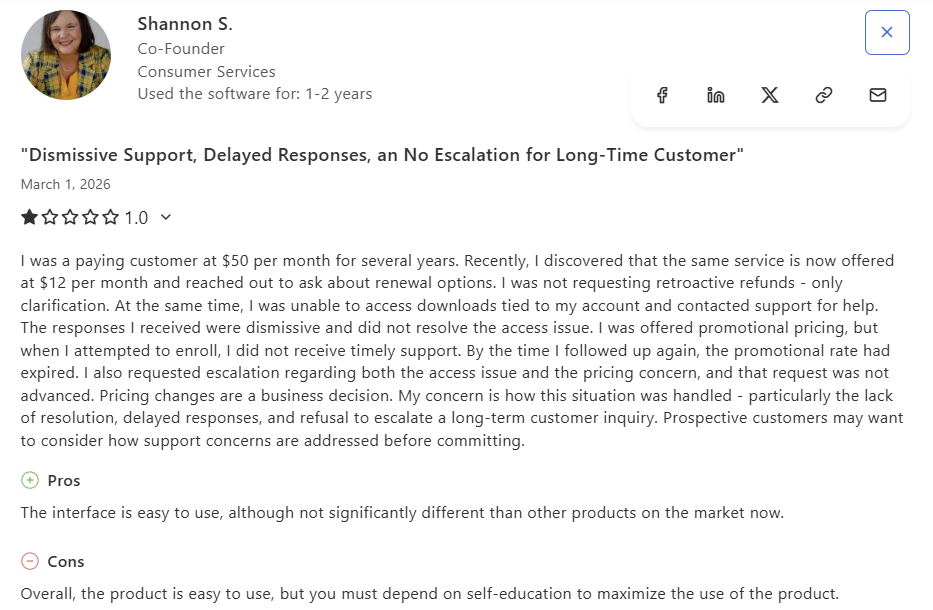
A March 2026 Capterra reviewer, a long-term paying customer, flagged a similar experience while trying to resolve a billing and account access issue via a support escalation.
For users on the Pro or Team plan who encounter a billing issue or need urgent help, support options are limited. If reliable, responsive customer support is a priority for your team, it is worth factoring in Trustpilot feedback alongside the stronger G2 and Capterra scores.
Pros and Cons of Beautiful.ai
Pros
- Fastest path from idea to polished deck for non-designers. The Smart Slides system eliminates formatting busywork.
- Consistent, professional output every time. It's nearly impossible to produce an ugly slide, which is a real advantage for teams with mixed design skills.
- Viewer analytics on shared presentations provide actionable engagement data, especially for sales workflows.
- Real-time collaboration on Team plans works smoothly for co-editing and feedback loops.
- Built-in stock library and icon set reduce the need for external asset sourcing.
- PowerPoint export means you're not locked into the platform for final delivery (though export fidelity varies).
Cons
- No free plan. The 14-day trial requires a credit card and auto-renews into an annual subscription, which has generated significant complaints on Trustpilot and Product Hunt.
- Limited design flexibility. Smart Slides enforce layout rules that cannot be overridden, which frustrates users who need custom or unconventional slide designs.
- Steep pricing jump from Pro ($12/month) to Team ($40/user/month). For even a small team of five, you're looking at $2,400/year.
- AI capabilities are more limited than those of newer competitors. Beautiful.ai's AI helps with drafts and layout but doesn't research, iterate conversationally, or generate deeply contextual content.
- Template library expansion has been slow. Long-term users report limited variety over time.
- PowerPoint exports can have formatting issues, including broken text boxes and shifted alignment.
- Trustpilot rating is 3.1/5 across over 200 reviews, with billing practices and customer support responsiveness as recurring concerns. G2 (4.7/5) and Capterra (4.3/5) paint a more positive picture, but the Trustpilot complaints are worth noting.
Beautiful.ai vs Presentations AI: Which AI Presentation Tool Wins in 2026?
Both tools aim to make presentation creation faster and easier, but they approach the problem differently. Beautiful.ai is a design-focused editor with AI assistance layered on top. Presentations.AI is built AI-first, meaning the AI handles content generation, brand enforcement, and iterative refinement from the start. Beautiful.ai is the better pick if clean layouts and speed-to-draft are your main priorities.
Presentations.AI makes more sense if you need the AI to do heavier lifting on content, brand consistency, and ongoing collaboration. The table below covers the key differences.
For a detailed breakdown of features compared to Presentations.AI, see our Beautiful.ai comparison page.
Beautiful.ai holds a clear edge on design maturity, entry-level pricing, and review volume. Presentations.AI pulls ahead on AI depth, brand automation, and import flexibility. Which one wins depends on what your workflow actually needs: if clean layouts and speed matter most, Beautiful.ai is the stronger pick; if you need an AI that works as a content collaborator rather than a design assistant, Presentations.AI is the stronger pick.
Best Alternatives to Beautiful.ai
If Beautiful.ai doesn't fit your workflow, the options below cover a range of use cases from AI-first creation to full design control. Here's how the main alternatives compare.
For users who need more design freedom than Beautiful.ai allows, Canva or PowerPoint are the natural next step. For teams that want stronger AI across the entire creation process, Presentations.AI and Gamma are the closest comparisons to test before committing.
Pro Tips for Beautiful.ai Users
If you're getting started with Beautiful.ai or want to get more out of it, these habits will save you time and prevent the most common frustrations.
- Test your PowerPoint export early. If you're delivering editable files to clients, run a test export in the first session rather than at the end of the project. Fonts and element alignment can shift during conversion, and it's much easier to adjust your slide structure up front than to fix formatting issues in a finished deck.
- Lock brand elements on your first and last slides. Set your logo placement, color scheme, and font choices on slide one and your closing slide before building anything else. These slides anchor the deck's visual identity, and finalizing them early keeps the rest of the presentation consistent as you add content.
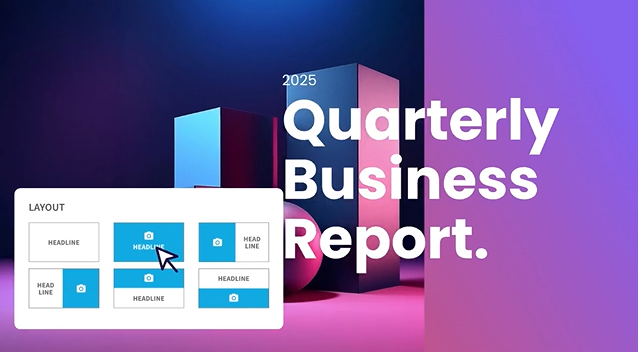
- Use the Smart Slide type selector rather than fighting the layout. When a slide isn't doing what you want, the instinct is to keep editing within the same layout. A faster fix is to switch to a different Smart Slide type that better fits your content. The selector shows you available layouts in real time, and picking the right structure from the start takes far less effort than trying to force one that wasn't designed for your content.
- Use version history before experimenting with layouts. Beautiful.ai saves version history on Team plans, so use it. Before testing a significantly different layout or restructuring a section, save a named version so you can roll back cleanly if the experiment doesn't work out.
- Start from the template closest to your use case, then edit. Building from a blank slide is rarely worth it in Beautiful.ai. The Smart Slide system is designed to work from a template foundation, and the closest match to your use case will get you 70-80% of the way there. Editing from a near-fit template is consistently faster than starting from scratch.
Should you use Beautiful.ai?
Pick Beautiful.ai if:
- You create presentations weekly or more and want consistent, professional output with zero design effort.
- If your team is small (fewer than 5 seats) or you work solo, the Pro plan meets your needs.
- You value viewer analytics for tracking how prospects or stakeholders engage with your decks.
- Your brand requirements are straightforward (colors, fonts, logos) and don't require deep customization.
Pick Presentations.AI if:
- You want AI to do more than just layout. You need it to draft content, research topics, and iterate on your deck in conversation.
- Brand consistency is a priority, and you want it enforced automatically through AI, not manually through theme selection.
- You're looking for a free starting point to test the platform before committing to an annual subscription.
- Your team includes non-designers who need to produce professional decks independently, without relying solely on templates.
Pick something else if:
- You need full design freedom and pixel-level control (go with Canva or PowerPoint).
- You want a free plan with generous AI features (look at Gamma).
- You're embedded in the Microsoft ecosystem and need native integration (PowerPoint with Copilot).
For most solo professionals and small teams, Beautiful.ai delivers on its core promise. For teams that need stronger AI, more flexible pricing, or deeper brand controls, there are better options at a similar price point.